The Mac Emoji Keyboard, and Why I Built Comoji
· Matt Senter
Every Mac ships with an emoji keyboard. Press Control-Command-Space, or Fn-E (Globe-E on keyboards with a Globe key), and a small panel of emoji appears where you are typing. It is free, it is built into macOS, and most people never think about it again.
I thought about it a lot, because it is genuinely bad at the one thing I do most. I usually know exactly which emoji I want, and I want it without leaving the keyboard.
So I built Comoji. This is not a how-to; Comoji’s own guide covers every way to open the picker. This is a founder’s take on what Apple’s emoji keyboard gets right, where it falls short, and the decisions behind the app I made instead.
What is the Mac emoji keyboard, exactly?
Apple calls it the Character Viewer. Apple’s list of Mac keyboard shortcuts says Control-Command-Space or Fn-E shows it, and you can also choose Edit > Emoji & Symbols.
It does more than emoji. Apple’s guide to emoji and symbols describes it as a way to browse and enter emoji, symbols, accented letters, and characters from other languages. It has a search field, a Favorites list, and skin tone variations when you click and hold an emoji.
There is also a quieter feature most people miss. Type a word like “heart,” press Fn-E, and macOS offers emoji to replace it. In Keyboard settings you can even set the Fn or Globe key on its own to Show Emoji & Symbols.
What does Apple get right?
Quite a lot, honestly. The picker is built in, so there is nothing to install, trust, or keep updated. It is available wherever you type, not only in chat apps.
It is also a good tool for browsing. When I do not know what I want, or I need an arrow, a degree sign, or a letter with an accent, a searchable grid is the right shape. The Character Viewer covers far more than any emoji shortcut list ever will.
And Apple put real care into the edges: favorites, frequently used characters, skin tones, adjustable sizes. None of that is lazy work.
Where does it fall short if you type emoji all day?
The problem is not missing features. It is the interaction itself.
When I already know I want a lizard, the picker makes me stop typing, look at a grid, aim at a small target, and then find my place in the sentence again. Search helps, but it is still a detour: open a panel, type into a different field, choose, come back.
The type-a-word-then-press-Fn-E trick is closer, but it runs backwards for me. I have to finish a real word first and then ask for a suggestion with a key combination. The result depends on the word I happened to type, not the emoji I have in mind.
Each detour is small. Emoji are small too, and they show up constantly in the way many of us write now. A small tax on something frequent adds up.
Why was Slack’s colon the better idea?
In Slack I never had that problem. Type a colon and a few letters, and suggestions appear right at the cursor. Keep typing to narrow them, press Tab, keep going. Your hands stay on the keys and your eyes stay on the sentence.
That interaction was never really about Slack. It was just trapped inside one app. Discord speaks the same colon language, and the macOS emoji keyboard never learned it.
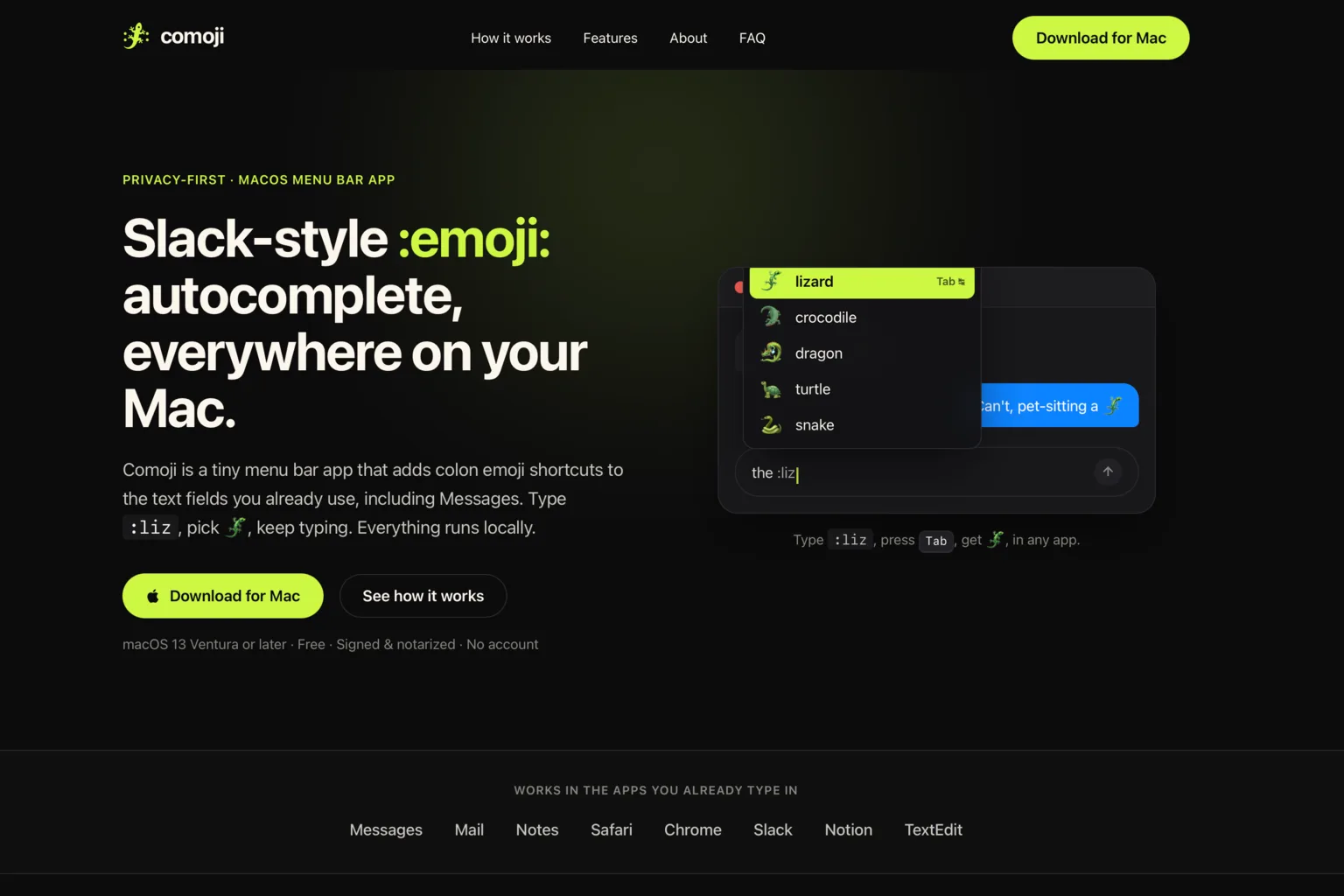
Comoji is my answer to that. Type :liz, press Tab, get a lizard, in Messages, Mail, Notes, Safari, Chrome, Notion, and TextEdit, not just in Slack.
What design decisions shaped Comoji?
Most of the work was deciding what the app should feel like when you are not thinking about it. A few decisions did the most:
- Inline, not a window. Suggestions appear at the cursor. Arrow keys move, Tab or Return accepts, and Esc dismisses.
- Names people already know. Comoji uses Slack- and Discord-style aliases, so muscle memory carries over.
- A trigger you can change. The colon is the default, and the Comoji site lists the other trigger keys you can pick if it gets in your way.
- Learning from use. Emoji you send often rise to the top, and your skin tone choice sticks.
- A name that is the interaction. Comoji is colon plus emoji. I wrote more about that in how I name the things I ship.
Why does an emoji app need to be careful with your keystrokes?
An app that autocompletes what you type has to see what you type. That is a serious ask, and I tried to design around it rather than wave it away.
Everything runs locally. There is no account, nothing to sync, and your typing never leaves the Mac. It is the same reason I keep building small, local software.
Comoji also stays out of places it has no business being. It is off by default in password managers and terminals, and you can turn it off for specific websites. When macOS Secure Input is on, Comoji stands down and shows a lock on its menu bar icon, a decision I wrote about in building defensive software.
Should you replace the Mac emoji keyboard?
No, and you do not have to choose. The Character Viewer is still the right tool when you want a symbol or when you are browsing. Comoji is for the other case: you know the emoji, and you want it without breaking stride.
Comoji is a free menu bar app for macOS 13 Ventura or later, signed and notarized, with no Dock icon and no window. It is free for the reason I gave in why most of my apps are free: nobody pays to find out whether an autocomplete feels right.
If you want to find out, download Comoji. Type a colon, a few letters, and Tab.